
Zotero is a powerful reference manager. It is open source, and is a project of a nonprofit organization, Digital Scholars. It helps researchers to manage references, and aims to be a researcher assistant. With Zotero we can collect papers or web sources, organize PDFs/metadata, annotate, cite in Word/LibreOffice/LaTeX, and sync with a library, It is well known for being an alternative to Mendeley Reference Manager, a closed source software, which in contrast is owned by a very profitable Dutch academic publishing company. Open source alternatives to Zotero are JabRef Bibliography Management, and Paperlib.
Some of the reasons to consider Zotero over its competitors are its popularity, showed by the amount of stars and forks on GitHub (15.2k and 1.1k respectively), an active community on Reddit and its forum, and their release cycle, demonstrating how active Zotero project is. Zotero 8 was released in January, Zotero 9 in April, and Zotero 10 in August of 2026.
As an open source software, it mainly depends on the community to be developed, that can be in developing plugins or helping in the development of Zotero itself.
Usually, many functionalities are tailored to the taste of the ones who developed it, making things overly complex or buggy. However, Zotero is doing a good job overall as the number one open source reference manager. It might look like an overly complicated helicopter panel at first glance, but in this tutorial we aim to set things once, and after that you would be good to go. So be patient, this will take a while to complete. Use your desired chat assistant to paste this tutorial there and help you in times of need. But I promise that having it organized really pays off.
In this tutorial, you will learn how to
- Install plugins
- Set a watch folder
- Organize your Library
- Styling Zotero
- Get bibliometric insights
- Chat with your Library or a Paper
Install plugins
Plugins in zotero are .xpi files. The Zotero official plugin website is minimal, and they do not provide a list of available plugins. You can find them in Awesome Zotero, in Zotero's Reddit page, or in Zotero's Forums.
After you download a .xpi file, to install it in Zotero is to click on Tools -> Plugins, click on the cogwheel, and "Install plugin from file".
Set a watch folder
[Plugin] Watch folder
! BEFORE FOLLOWING THIS, BACKUP ALL YOUR ZOTERO DATA: copy ~/Zotero/ somewhere safe while Zotero is closed. That folder contains the database and the attachments, which is your whole library.
This section changes the way you include papers in Zotero. If you are comfortable with its browser extension or another way of doing so you can skip this section.
I prefer to have the PDFs I'm reading on my machine, and there is some sort of correspondence between what I have on my machine with what I have in Zotero. Zotero was made in such a way that you are not supposed to care about the PDFs you are putting in your Library, making obfuscated who has the ownership of the PDFs, that is, where they are, on my local machine or in Zotero servers.
Thus, I devised the watch folder plugin With this plugin, I can configure a local folder to be my source of truth for my Zotero, i.e., a folder that the plugin watches constantly, and every modification there reflects in my Zotero collection. Please, differentiate between "local folder", a folder that is locally on your computer; a "file", that is a PDF file inside your "local folder". They both become, respectively, a Zotero collection, and an item inside a Zotero collection.
The watch folder: is an ordinary folder on your disk that you put PDFs into. For example /home/user/Documents/ZOTERO-WATCHFOLDER. The plugin monitors it. Subfolders become collections; files become items.
Zotero collection: is the library structure inside the app, similar to a local folder, it contains items that in turn can contain metadata, tags, notes, and highlights.
Example to understand terminologies: I have a local folder ~/zotero-watchfolder. Inside Zotero I installed the watch folder plugin. Inside the watch folder plugin I defined the source folder as ~/zotero-watchfolder. Everytime I create a folder inside this local folder it becomes a new Collection in my Zotero's Library (inside the app). Every time I create a folder inside this local folder, it becomes a new collection in my Zotero library. Every time I drop a PDF into one of those folders, it becomes an item in that collection, with the PDF attached.
Personally, I use it in the "Mirror, safe delete" sync mode. Which enables: Full two-way sync. Adds, renames, AND deletions propagate from disk to Zotero. Bulk deletions ask for confirmation. Deleted files go to a recoverable plugin trash, not permanent deletion. However, the user could benefit from the other sync modes available, depending on the user's style.
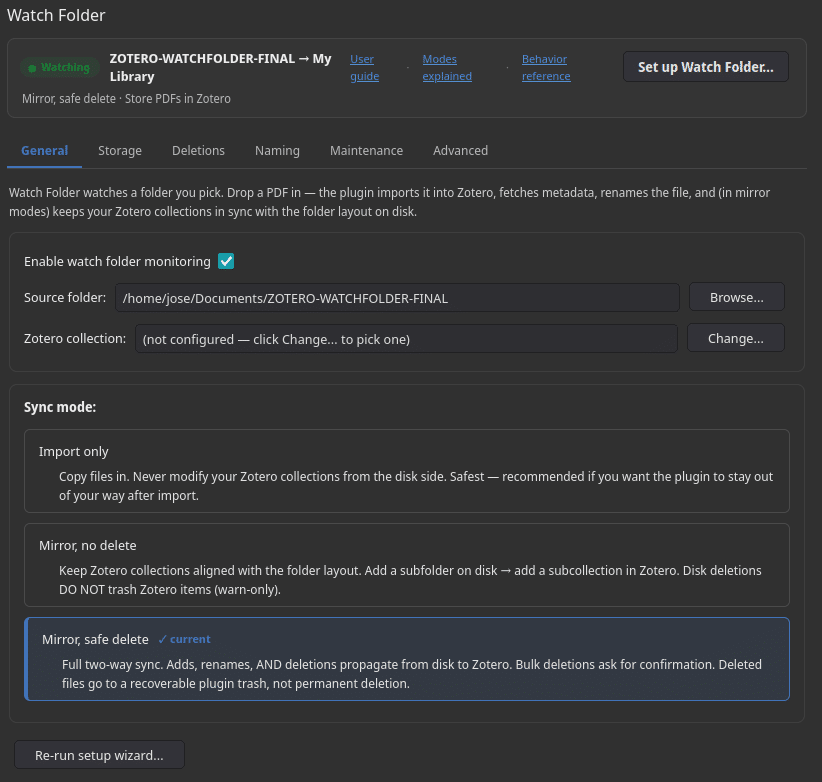
The steps to get started are:
- Create a folder locally, such as zotero-watch-folder.
- Set it as the source folder in the plugin settings.
- Create subfolders inside it, one per collection you want.
- Save your PDFs into those subfolders.
First, the watch folder plugin will try to collect metadata for your item and associate the PDF file as an attachment to that item. This item can have other attachments, such as Notes.
However, in Zotero, an item can be part of multiple collections. Therefore, on my machine one file will be part of only one folder. In other words, copying an item from Collection to Collection does not create multiple file copies in your local folder.
Storage and WebDav
Zotero's Library can be accessed in many ways. I want to use Zotero app on my phone, so I can continue reading papers there, highlighting, writing notes, and that those all are synced between my computer and my phone. Or maybe I want to continue working in a different computer, install Zotero and log in, or see my library in a browser via https://www.zotero.org/{replace_this_with_your_nick}/library
One way of doing that is using the Zotero own cloud service, that is, paying. Yes you can use its free quota, the attachments storage is free until only 300MB (and you can check your usage here), whereas storing the metadata, highlights, notes, is unlimited. But where are the metadata and the attachments locally?
Your Zotero library: the collections, items, metadata, tags, notes and PDF highlights, all of it stored as rows in ~/Zotero/zotero.sqlite
Zotero storage folder: ~/Zotero/storage/, holding the attachment files themselves, one hashed subfolder per PDF. Note that your highlights are not written into the PDF. They live in zotero.sqlite and are drawn on top when you open the item, which is why a PDF exported out of Zotero comes out clean.
Again, Zotero's servers store everything that is in yourzotero.sqlite local file, free and unlimited, never touching your quota. Whereas PDF files, i.e., attachments, are consuming quota in the Zotero cloud service.
How can I save myself to have also 'unlimited' attachment storage, not having to pay for Zotero?
WebDAV is the pipe out. Zotero uploads that storage folder to webdav.pcloud.com/zotero/ so the same attachments reach your other devices and the mobile apps. Group libraries are an exception. Their attachments cannot use WebDAV and always go through Zotero's servers, so they still count against your 300MB.
You drop a PDF in the watch folder, the plugin creates the item and copies the file into Zotero storage, WebDAV pushes it to pCloud.
Note that the watch folder and WebDAV are completely independent of each other. The plugin handles getting files in; WebDAV handles getting them out to your other devices. Neither knows the other exists.
Let's configure this:
In the Watch Folder settings:
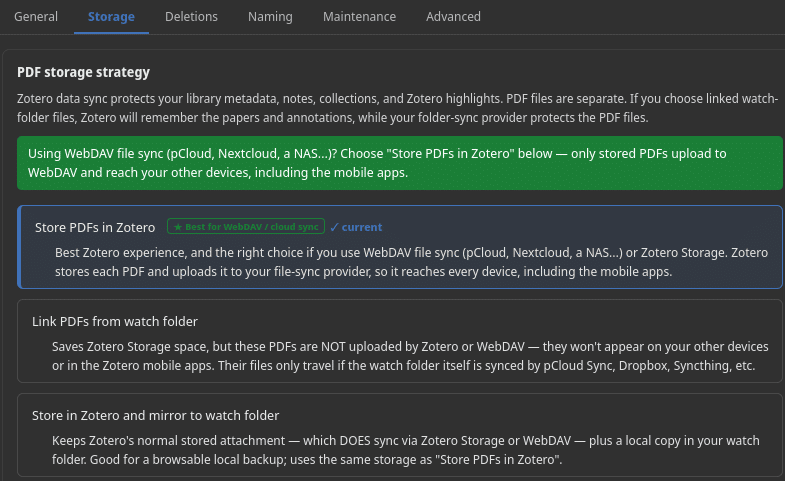
Store PDFs in Zotero: That tells the plugin to copy each imported file into Zotero's storage, which is what WebDAV then uploads.
Link PDFs from watch folder: Zotero merely points at the file on disk, nothing is uploaded, and your PDFs never reach your phone.
This tutorial will not cover the other options. However, the user is encouraged to test them and leave feedback.
Now, go to Settings -> Sync
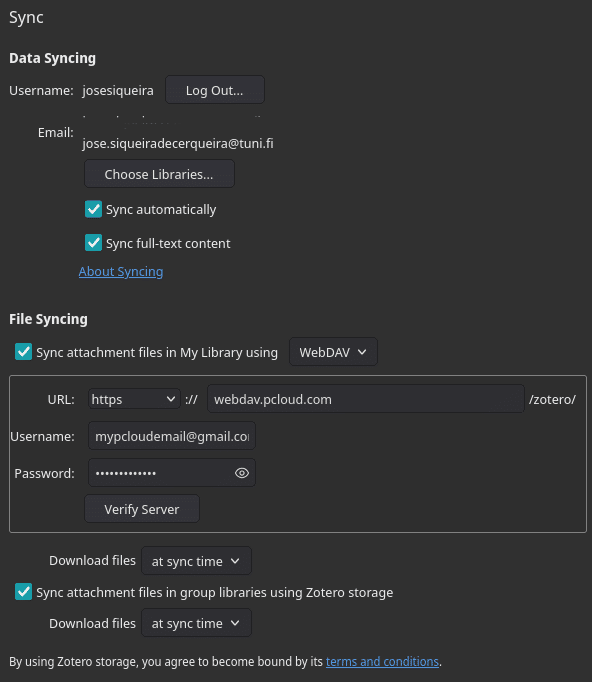
Data sync: Zotero's servers carry everything in zotero.sqlite: your collections, metadata, tags, notes, and highlights. Free, unlimited, and it never touches your quota.
File sync: A separate channel that carries the contents of storage/, meaning the attachment files themselves. This is the one you redirected away from Zotero.
WebDAV: That redirect. It points file sync at webdav.pcloud.com, where Zotero maintains a /zotero/ folder so your PDFs reach your other devices and the mobile apps.
In order to have WebDav working in pCloud, it is necessary to have a premium account. In other words, this works around with pCloud demands paying for pCloud. However, this grants way more storage than the initial 300MB from Zotero. Also note this is not an advertisement for pCloud, so any other service here works as well. This is just an example. You can substitute this either with another paid cloud provider or your own private server. The latter being optimal for privacy.
Now we have set up the watch folder plugin, and managing paper ingestion and organization is somehow easier. However, Zotero provides more ways of organizing your paper:
Organizing your Library
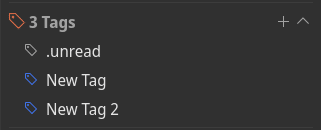
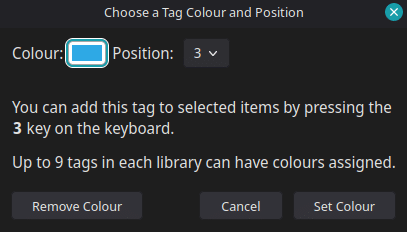
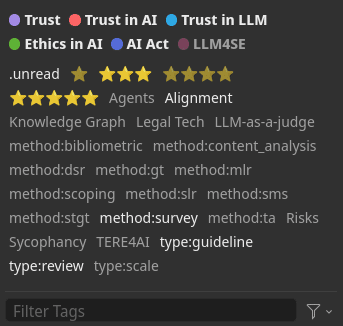
Tags: in my experience, tags have been useful in two ways: First, is to provide a filter inside a collection. I could have a collection of Methodologies, but I could want to view only the ones with the tag type:review. Second, is to provide a visual cue when tagging with colours. Zotero provides up to 9 coloured tags, which in turn become a small coloured circle by the side of the title of a paper. For that create a tag, then right click on it and select "Assign colour". It is also possible to have tags that emulate a classification with Stars for the items.
Collections for each paper you are working on: Since items can live in different collections, it is possible to have a paper in its original place, let's say the popular Systematic Literature Review paper by Kitchenham is there in the collection Methodology, but, at the same time, it is there in the collection of your working paper.
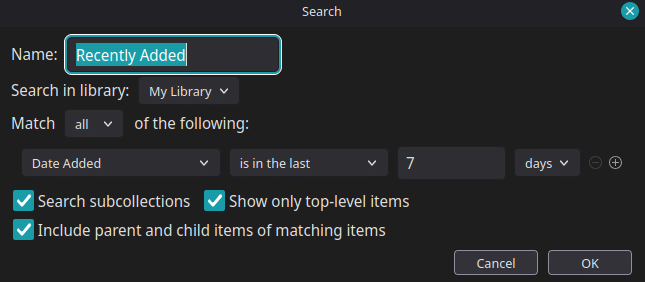
Saved searches: This creates a new dynamic collection that has a special kind of search that generates it. For example, we could have a Saved search for all the recent added items in our collection
Useful tips!
Highlighting all the collections of an item:
Pressing down ctrl when an item is selected, it highlights all the collections an item is part of.
Moving an item from one collection instead of copying it:
The normal behaviour when drag and dropping one item from one collection to another is to make a copy of it.
One way to move the item from the source collection to the destination collection is to press down shift while performing the drag and drop operation.
Showing items from a collection without its subcollections:
If we have a collection that has subcollections, it is possible that items are either in the collection folder, or in the subcollection folder, or in both.
A practical example is:
Researcher skills
├── Writing
└── Reading
Research skills is the Collection, while Writing and Reading are the Subcollections. A paper A could be seen only in the Researcher Skills, Paper B only in Writing, and Paper C only in Reading.
If we click on Researcher skills Collection, we are expected to see Papers A, B, and C.
This could be not necessarily optimal, as for example I could have papers only in the Researcher skills collection that are not yet indexed as Writing or Reading, working as an inbox. Also, I want to make sure I already indexed all the papers inside this Collection to its Subcollections.
How can I see only Paper A when I click on Researcher Skills?
Uncheck the box on View -> Show Items from Subcollections.
I think this option unchecked is particularly a most, and I do not understand why it does not come as default unchecked. However, if you can imagine the scenario where you need to see all the items in a collection and also within its subcollections, then you might consider checking this option.
Selecting multiple collections (Zotero 10):
Now we can hold ctrl while clicking on multiple collections, and it will display the items in all of them. Which can be an alternative to "Show Items from Subcollections".
Styling Zotero
We might need to change the overall layout of Zotero to our needs.
There are many ways to customise Zotero's layout. I found the need to include visual features, for example: light / dark mode, Read / Unread emphasis, modifying the columns, Collection counts, the background colour while reading a paper, and so on). In this section, I will present some ways to tailor Zotero.
[Plugin] Action & Tags
Adding visual cue for unread items
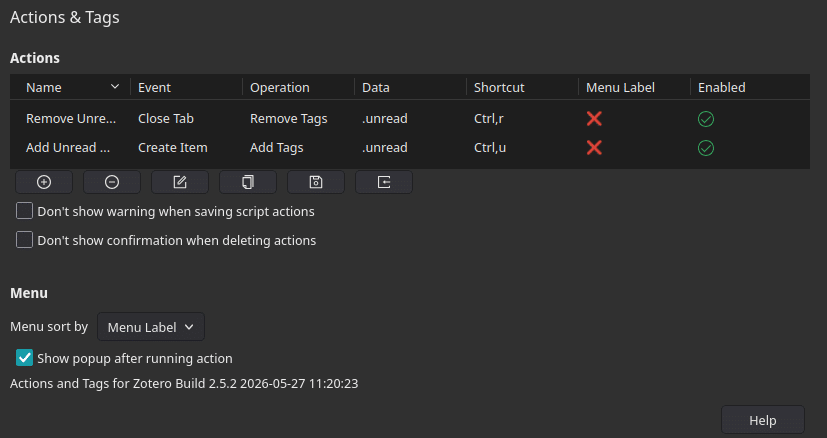
Every time we add a new paper through our pipeline, it just drops into Zotero's Library, but it is not so clear to know which ones we just added, besides the "Recently added" Saved search discussed above. One way to do so is to add a "Unread" column (done through Zotero Stylero plugin), and a an Custom Action (through the Actions & Tags plugin) that is triggered every time we add a new item, and every time an item that had this specific tag is closed. This plugin is teamed with the Zotero Stylero, see below.
[Plugin] Zotero Citation Tally
GitHub - daeh/zotero-citation-tally: Plugin that tallies citation counts for Zotero items.
Adding citation count
I want to be able to view how many citations each item has, and maybe sort them by citation counts. Thus, there is this plugin. It scrapes citation counts for research papers in your library from multiple academic databases. To use it, right click on an item which the citation count is empty or you think it is stale, and choose "Update Citation Tallies".
[Plugin] Zotero Stylero
https://github.com/josesiqueira/zotero-stylero#readme.
Download the .xpi and install it in Zotero.
This plugin builds on top of the popular Ethereal Style Plugin. The project seems not active, with important commits around 4 years ago. So I cloned it and modified. My attempt was to make it more simple.
This plugin gives you:
- The Sun/Moon button in the tab bar to switch to dark mode.
- Read / unread emphasis, meaning a that unread items are bolded.
- Shows the Unread and Rating columns (You can click on the stars to rate), and add a custom Creators column ( Template ${lastName}, ${firstName}, separator ; , suffix et al.),
- The Column Manager.
- Show item counts on Collections.
Fixing columns through restarts: I had a previous issue with Zotero, that every time I was changing the columns, for example which ones should be visible, the order, the lenght of each one, it was simply not saving every time I closed the app and opened again.
This where the Manage Columns icon is

And inside
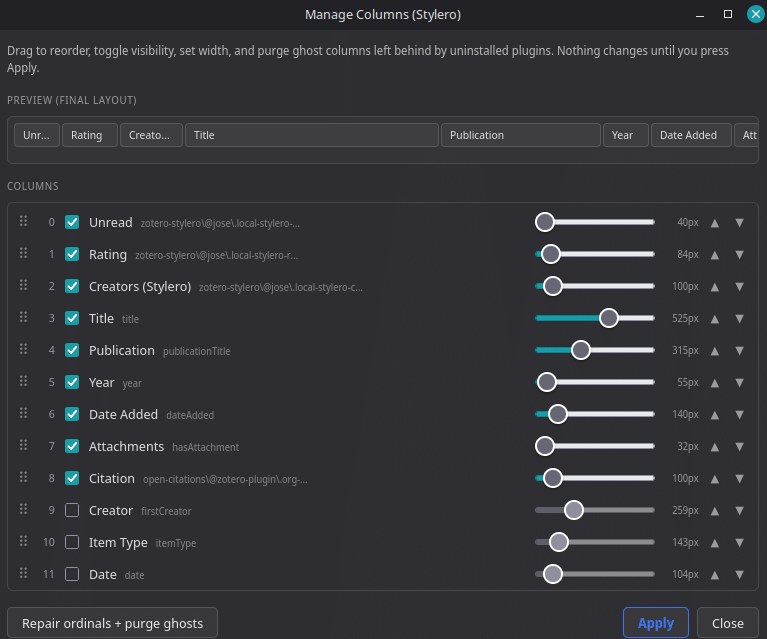
That is:
- Unread (Stylero)
- Rating (Stylero)
- Creators (Stylero)
- Title
- Publication
- Year
- Date Added
- Attachments (hasAttachment)
- Citations ([email protected], from the Open Citations plugin)
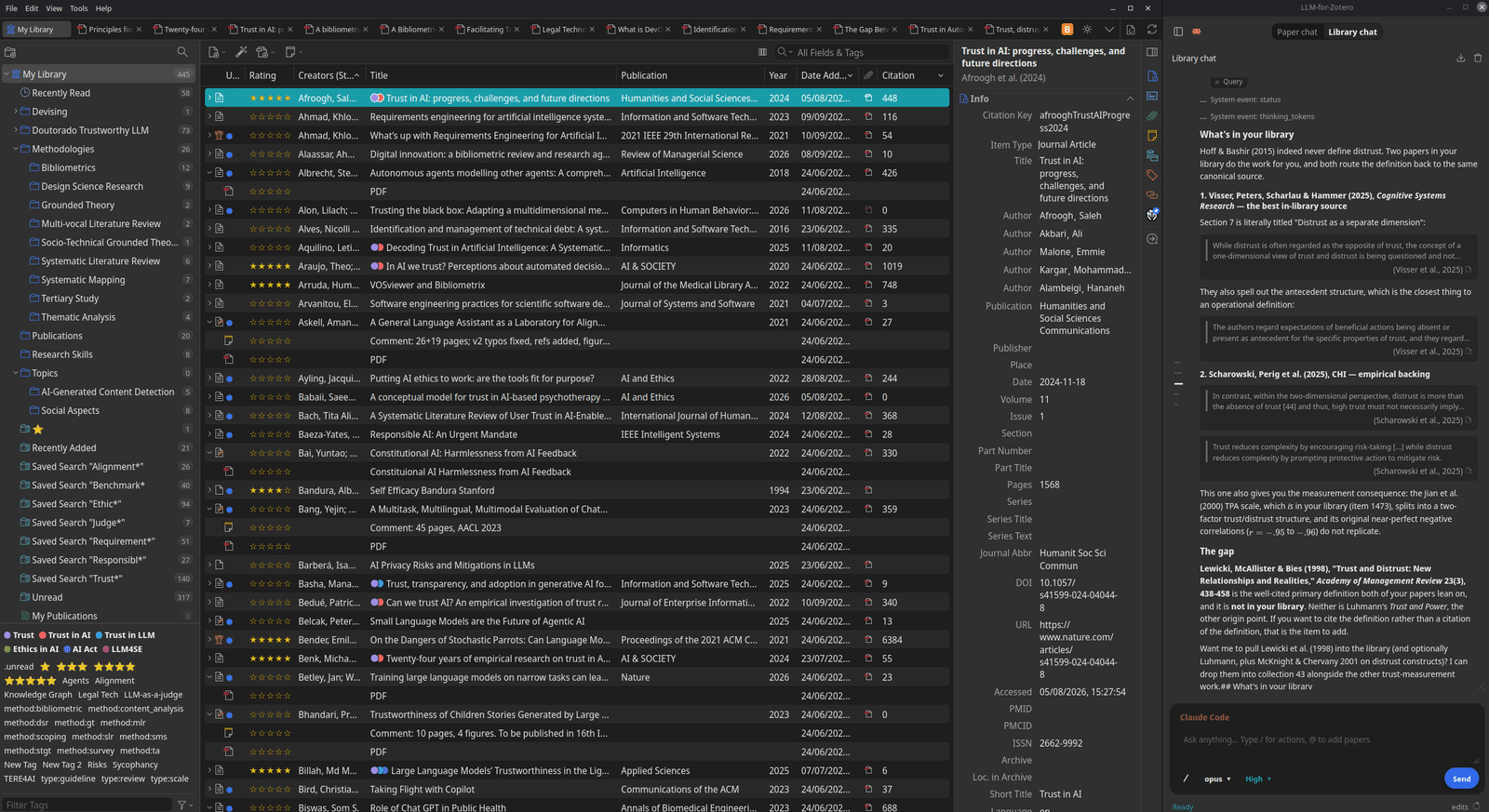
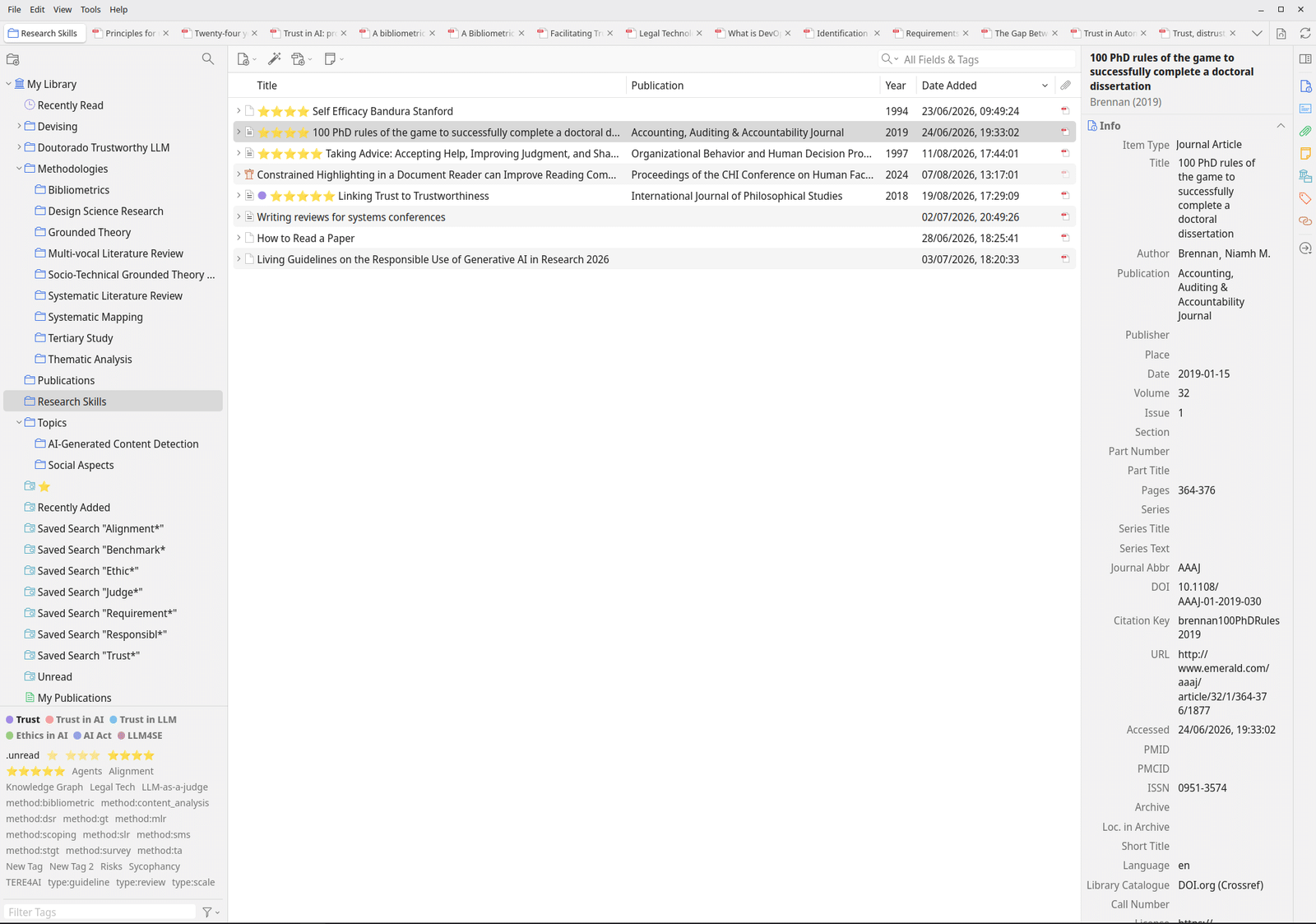
Which in turn looks like:

Change the appearance of the PDFs:
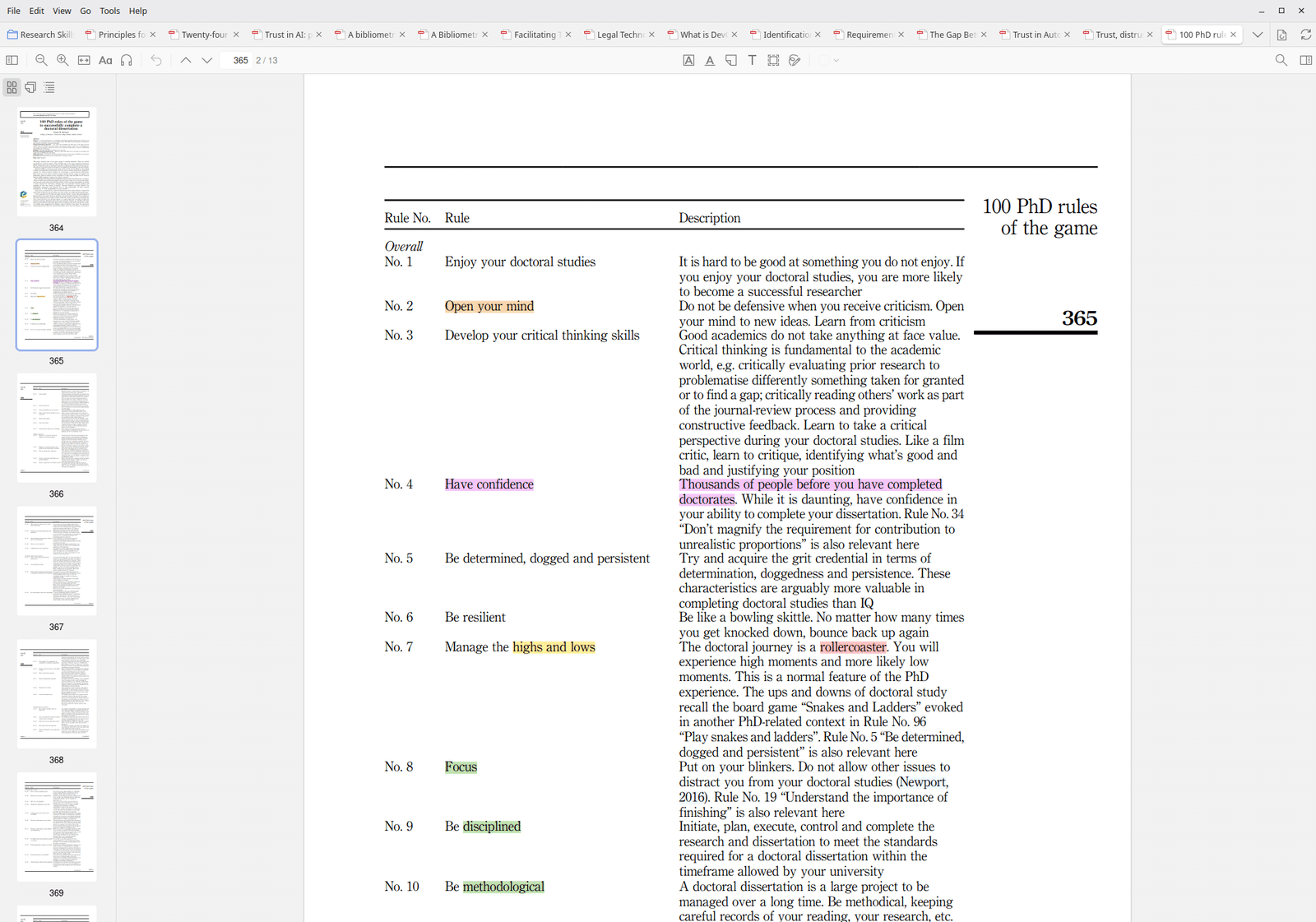
Sometimes we don't want to stare at the white background for long. Some themes are more pleasent to the eyes allowing deep focus for longer. Open a PDF, click on appearence, and add a Theme.
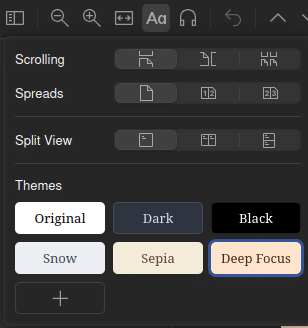
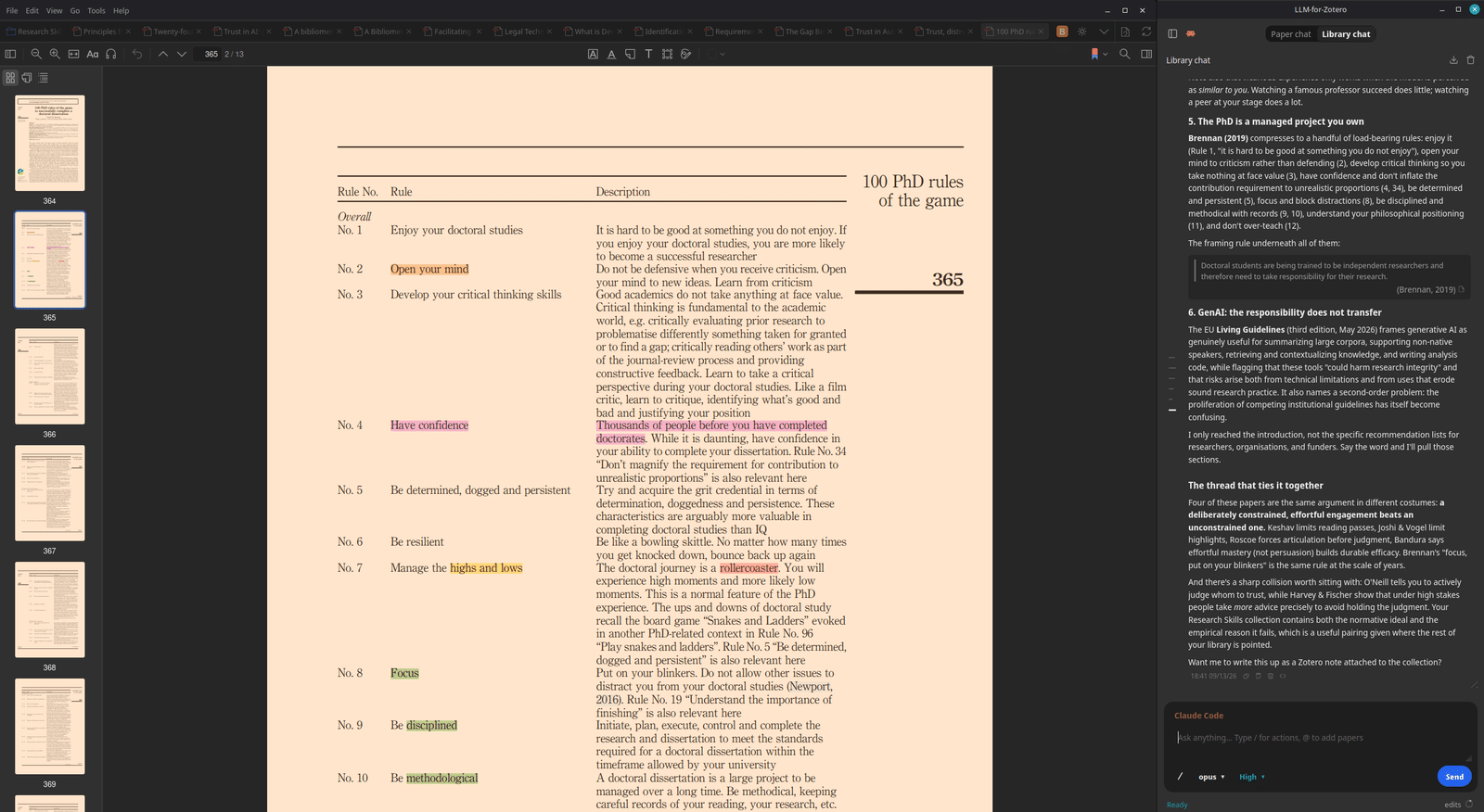
The one I'm currently using is: Background: #FFE5CC and Foreground: #3D2B1F. Find the one that suits you best.
Options inside View menu:
At this point, this is just extra convenience, however, I intend to be transparent about my configurations also in the View menu, but the reader should change it to their own taste:
Layout: Standard
Density: Comfortable
Font size: Adjust to your screen
Note font size: I use 14
Note tab font size: I use 16
Sort by: Title
Show Items From Subcollections: Unchecked
Show item counts: Checked
Hide Non-Matching annotations: Checked
[Plugin] Get bibliometric insights
Inside Ethereal Style Zotero there was some interesting feature that could make some graphs out of your library items. I took it out from there and made this plugin called Bibliometero and tried to improve it
This is the panel
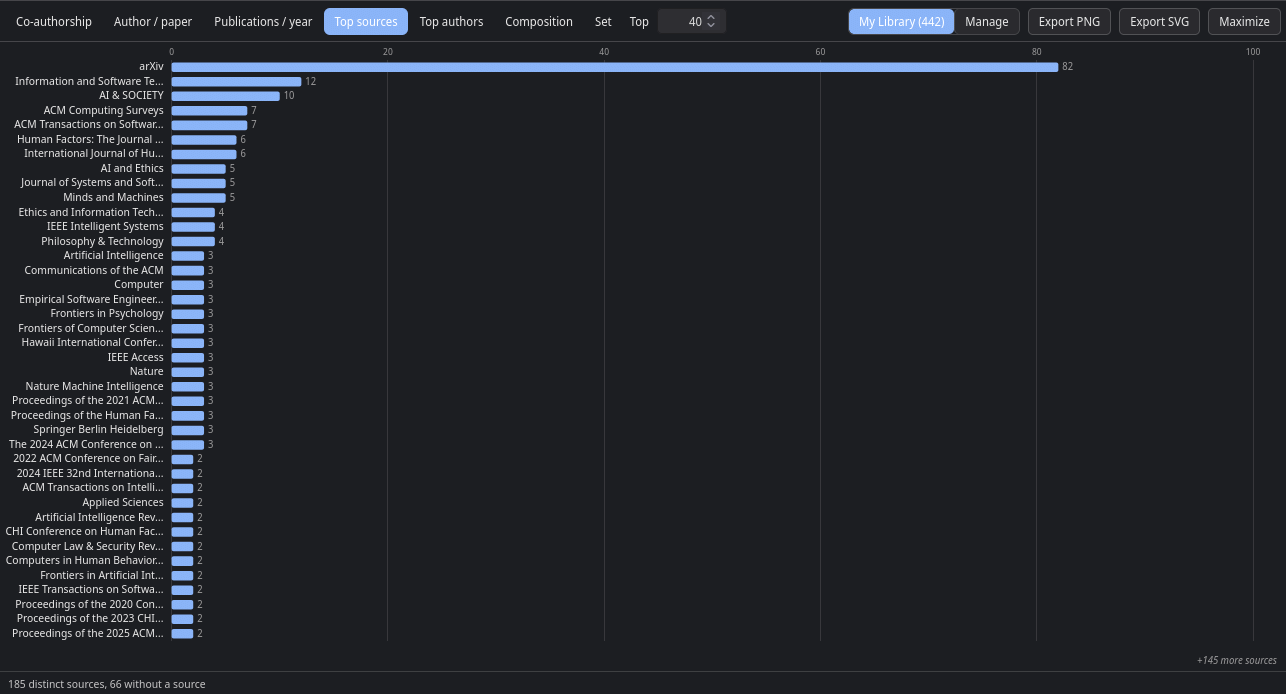
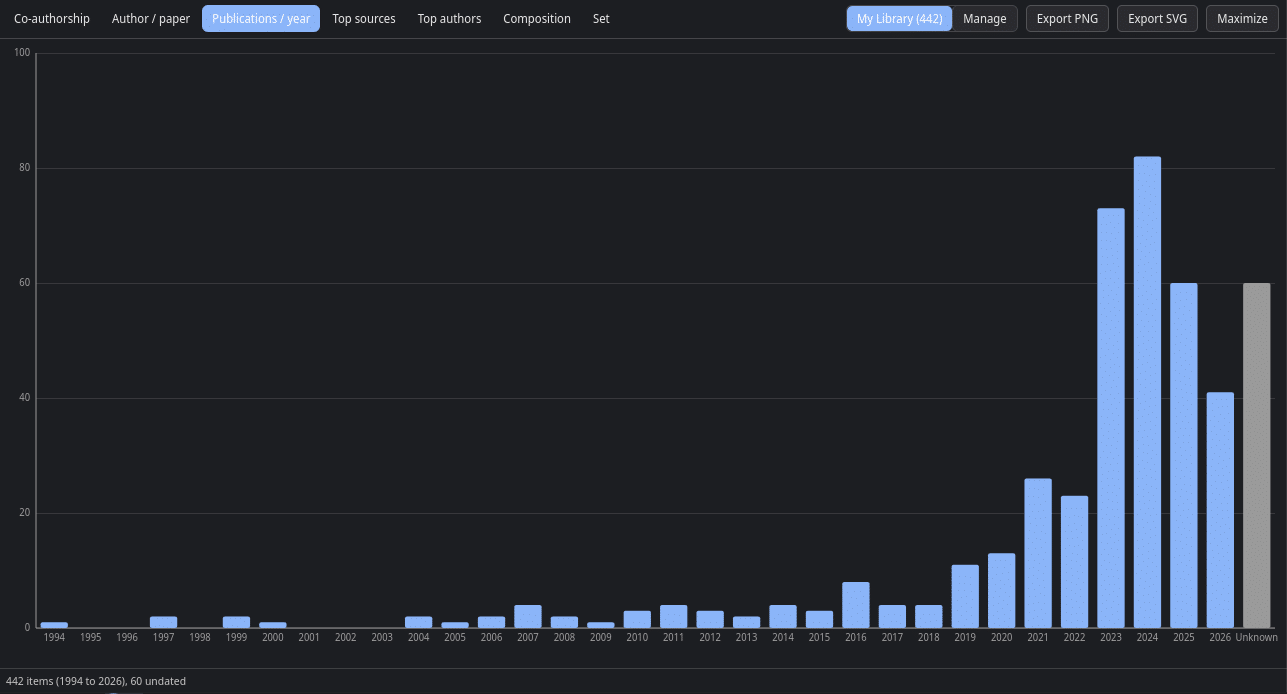
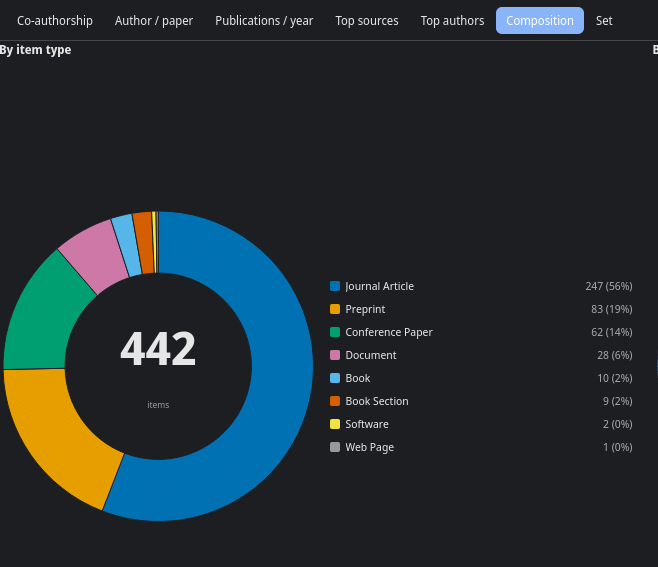
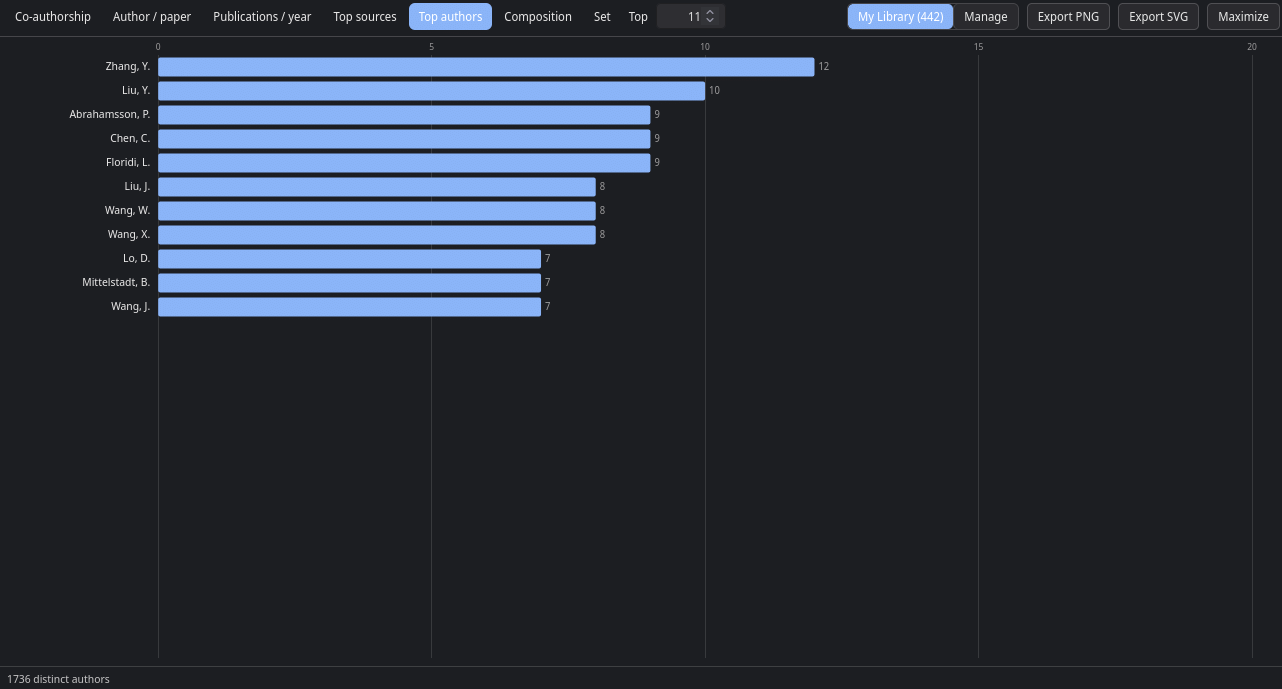
This is a work in progress, if you are interested to know more about it check the GitHub, and fork the project. I advice to use this MCP server, ask your favorite coding agents to "install this mcp server and use for this project" and that will give you a nice bridge between your coding agents and your Zotero, so it can help you with plugin development.
Chat with your Library or a Paper
Finally, for the last topic, we will have LLM integration with Zotero. It allows you to chat with your whole Library, or with a particular paper. This tremendously increases insight and productivity.
[Plugin] llm-for-zotero
! Only use papers you have the right to share with the LLM provider. Copyrighted PDFs may be sent to third-party services.
Download and install the .xpi
Follow the instructions provided. This project is too big for me to describe it here.
I am personally using Claude Code integration with the cc-llm4zotero-adapter.
This plugin enables an in-panel integration, that is, you can chat with your Library or paper inside the right panel.
Or, there is a detached window for chatting, which is good for someone using a second screen.
In my setup, I have Zotero on a second Workspace in my Linux Mint, and I have the llm-for-zotero as a detached window tiled to the right. A user is supposed to fix metadata with this plugin, however, writing operations are risky.
This is how it looks like:
Inside a paper, showing the colours and a chat with the one specific Collection.
Which now I can point to the 'naked version' of Zotero (all plugins are off):
The main goal of this tutorial was to describe how to configure your Zotero for optimal ingestion, management, and retrieval. We covered topics such as systematizing the ingestion of files with a watch folder and how to organize your library. Also, how to style Zotero user interface, how to show a bibliometric panel, and finally, how to chat with your Library or a paper. Hopefully, this tutorial might help those who dislike Zotero (e.g. https://www.reddit.com/r/zotero/comments/1w4od0l/zotero_is_so_shitty/, https://www.reddit.com/r/PhD/comments/1qwl8t4/zotero_is_driving_me_mad/, ) and help you to achieve the true goal of Zotero, managing and reading your references effectively.
